# Craft Contact Form Extensions

[](https://github.com/hybridinteractive/craft-contact-form-extensions/releases)
[](https://packagist.org/packages/hybridinteractive/craft-contact-form-extensions)
Adds extensions to the Craft CMS contact form plugin.
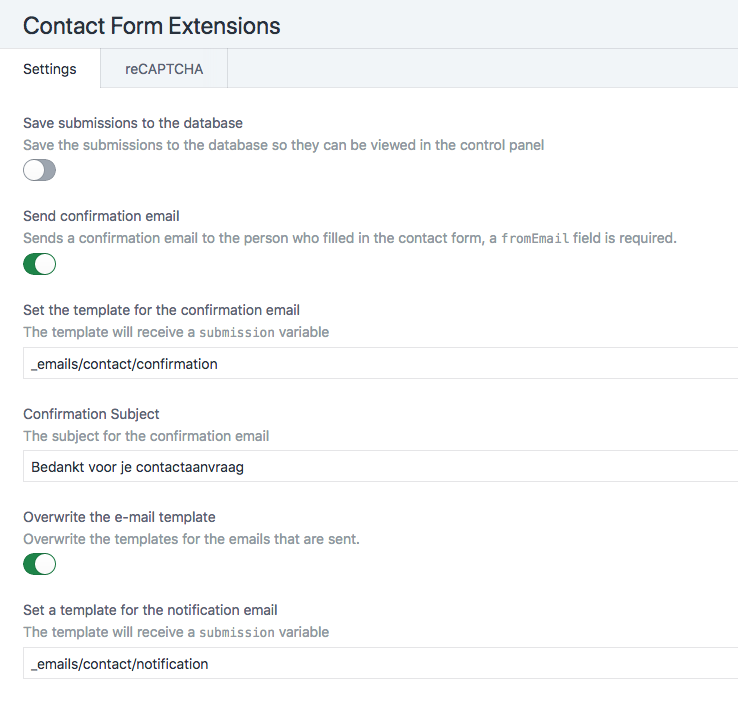
- Save submissions to the database and view them in the Control Panel
- Add a confirmation email that is sent to the submitting email
- Overwrite the default e-mail template
- Add an invisible reCAPTCHA
## Support Open Source
This plugin is licensed under a MIT license, which means that it's completely free open source software, and you can use it for whatever and however you wish.
## Requirements
This plugin requires Craft CMS 4 and the [Contact Form](https://github.com/craftcms/contact-form) plugin.
## Installation
Install this plugin through the Plugin Store or follow these instructions.
1. Open your terminal and go to your Craft project:
cd /path/to/project
2. Then tell Composer to load the plugin:
composer require hybridinteractive/craft-contact-form-extensions
3. In the Control Panel, go to Settings → Plugins and click the “Install” button for Craft Contact Form Extensions.
## Overwriting the email templates
When you overwrite the email templates, your twig view will receive a `submission` variable which contains all the information that a default Contact Form submission contains:
- fromName
- fromEmail
- subject
- message
- attachment
## Overriding the form name
When saving submissions to the database the default form name will be "Contact". If you add a `message[formName]` hidden field you can override the form name. This can also used to create multiple form indexes in the Control Panel.
```html
```
## Overriding the confirmation template
When sending confirmation option is enabled and custom templates per form are needed, override the template with a hidden field. The template needs to be placed under templates\\_emails folder. Add a hash for safety. The same data is passed as in the default overridden template.
```html
```
## Overriding the confirmation subject
When sending confirmation option is enabled and custom subjects per form are needed, override the subject with a hidden field. Add a hash for safety.
```html
```
## Overriding the notification template
When sending notification option is enabled and custom templates per form are needed, override the template with a hidden field. The template needs to be placed under templates\\_emails folder. Add a hash for safety. The same data is passed as in the default overridden template.
```html
```
## Overriding where the message is sent
```html
```
### Please note: Craft 5's version of this plugin does not support Recaptcha, we apologize for any inconvenience.
## Disable recaptcha on a per form basis
```html
```
## Disable saving to database on a per form basis
```html
```
## Disable confirmation email on a per form basis
```html
```
## Adding invisible reCAPTCHA
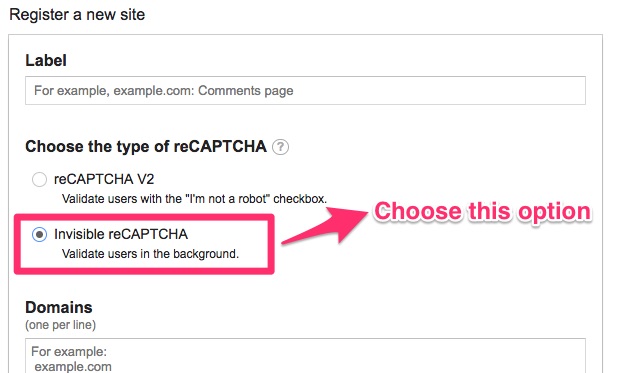
Before you set your config, remember to choose `invisible reCAPTCHA` while applying for keys.
Enable reCAPTCHA in the Contact Form Extensions settings and fill in your `siteKey` and `secretKey`.
Then use the following code in your forms inside of the `